Consulting firm dataBridge is providing free SharePoint planning tools available for download “to assess governance maturity, Copilot readiness, permissions, migrations, intranet redesign, AI readiness, and long-term SharePoint adoption.” Click here and then scroll down to find nine different scorecards, matrices, checklists, and worksheets for your next SharePoint project.

Happy New Year everyone. Over on LinkedIn, Joel Oleson has posted a fascinating article on how SharePoint came to be in the early formative years. I recall working with the Digital Dashboards they mention back in 2003. It’s also important to note that Microsoft did a full architecture rebuild for SharePoint 2010 and that FrontPage evolved into SharePoint Designer. Perhaps he’s saving these nuggets for another article?
Microsoft is releasing a new security feature for SharePoint Online pages. The new Content Security Policy (CSP) for SharePoint Online is a server-side security feature that works by running rules that tell your browser which scripts are allowed to run. The browser enforces those rules when rendering the page—blocking any script that isn’t from an approved source. [Read more]
If you or your users have created a column in SharePoint Online and chose its type as Number, then it will have commas as the thousands separator for numbers over 3 digits. For fields such as EmployeeID or Invoice Number, you may not want the commas. The solution is to Format the column, go to Advanced, and put in the following JSON code:
/* Add this to the JSON formatting section */
/* This is for when a number field shows thousand separators */
{
"$schema": "https://developer.microsoft.com/json-schemas/sp/v2/column-formatting.schema.json",
"elmType": "div",
"attributes": {
"class": "=if(@currentField > 0, '', '')"
},
"txtContent": "=toString(@currentField)"
}
Modern Site pages often have a large amount of unused white space on the sides of the active content area. The bulk of the nonsense found on Google is not helpful.
The short answer is:
- I used F12 (aka “Developer Tools”) to figure out the exact name of the content area that is undersized. In our case it’s “CanvasZone”. Later on it was “SPCanvas-canvas”. So I’ve updated the code for both.
- I added a Content Editor Web Part (You may have to add the free “Modern Content Editor Web Part” from Github.)
- I added the below CSS code to the CEWP above to set the width to 100% and the margins to 0.
Here is the code for you to use:
<style text="type/css">
.CanvasZone>:first-child,.CanvasZone,.CanvasComponent,.SPCanvas-canvas,.CanvasZoneContainer {
max-width: 100% !important;
width: 100% !important;
padding: 0px !important;
margin: 0px !important;
}
.CanvasSection-xl4>:first-child {
margin: 0px !important;
padding: 0px !important;
}
</style>
__________________________________________________________________
**Update Apr 24, 2025: This super helpful video from SPJeff covers this very topic. Great minds think alike. I wish I had found his video before going to all of this work! I added his .CanvasSection-xl4 code to my code above.
**Update Nov 8, 2025:I work with a gov’t client who’s running SP2016. I added these selectors to line 2: .CanvasComponent,.SPCanvas-canvas,.CanvasZoneContainer
I remember the Property Bag feature from long ago, namely SharePoint 2013. I never used it.
Apparently, it’s still around and available for SharePoint Online. There is no GUI for it so setting or viewing Property Bag key/value pairs is done either programmatically or via PowerShell.
Scripts are disabled by default on SharePoint Online modern sites. So if you try to set a Property Bag key/value pair in PowerShell you will encounter an error. To avoid this, you have to first run a PowerShell command to disable NoScript. (The double negative means you’re therefore enabling scripts on the site.) Once NoScript is disabled, you’re free to run your PowerShell script.
According to this article, starting in November, 2024 (i.e. now) Microsoft is providing a new tenant-wide feature that will allow Property Bag scripts to run without first disabling NoScript. In short, the Property Bag feature gets a pass.
If you’re thinking either “What is the Property Bag feature?” or “Who cares? I’ll never use it.” then here is a very good article that describes the feature well and provides some very good use cases, such as auto-applying retention labels.
Definitely heed the part where you need to add the -Indexed parameter if you want this key/value pair to be added to Search.
I can see how the Property Bag feature could be quite useful in assigning Metadata values that are leveraged both by Search as well as Sensitivity or Retention labels. So consider this hidden feature in your SharePoint Online development journey.

Want to edit the toolbar on a list in SharePoint Online as shown above? April Dunham has provided an excellent and concise video on YouTube. She covers how to hide, move, and edit the text on the various toolbar buttons on a SharePoint list by editing the JSON for the List view.
Caveat: You have to edit the JSON for each view separately. And anyone with the permissions to create a new view can clearly do so and then enjoy the default buttons, thereby bypassing your cleverness.
She provides a high-level overview with a few examples. This spurred me into looking for a complete list of commands and functions for editing a List toolbar. So here it is: https://learn.microsoft.com/en-us/sharepoint/dev/declarative-customization/view-commandbar-formatting
Now go customize those list menus and impress your users!
I cannot say enough about Salaudeen Rajack. His website – SharePointDiary.com – is awesome and I often find content there that one simply cannot find elsewhere. Recently, he posted a list on LinkedIn of 10 excellent (and free) resource guides that he offers on his website. So I’m copying and pasting the list here for those that may not see it on his LinkedIn profile.
Top-10 Guides for SharePoint Pros from SharePointDiary.com!
1. PowerShell Basics: Your Quick Reference Guide! https://lnkd.in/gsnDzp_M
2. How to Install the PnP PowerShell Module for SharePoint Online? https://lnkd.in/gi-sz2Xk
3. SharePoint Permissions – A Comprehensive Guide! https://lnkd.in/gGRrJs7M
4. SharePoint Admin Center: A Comprehensive Guide https://lnkd.in/gji3crfX
5. Mastering PowerShell Loops: An Essential Guide https://lnkd.in/gvrkYk-y
6. Site Collection Admins in SharePoint Online https://lnkd.in/gMTgHFRx
7. How to Connect to SharePoint Online from PowerShell? https://lnkd.in/gkAYfvyH
8. Mastering SharePoint Document Library: A Comprehensive Guide https://lnkd.in/gTX3E3Sf
9. How to Run PowerShell Scripts for SharePoint Online? https://lnkd.in/gdXPf_vT
10. SharePoint Recycle Bin: A Comprehensive Guide https://lnkd.in/geBRU6wc
It feels odd to write a non-technical post but I read an interesting article about product development around the SharePoint ecosystem at Microsoft over the past 8 years and it is worth sharing. This is an interesting behind-the-scenes view. It seems to me that the focus lately has been on the end-user experience, the UI/UX, and the web content creator experience rather than the previous emphases on document management and process automation. (Content types, document sets anyone?) Anyway, draw your own conclusions.
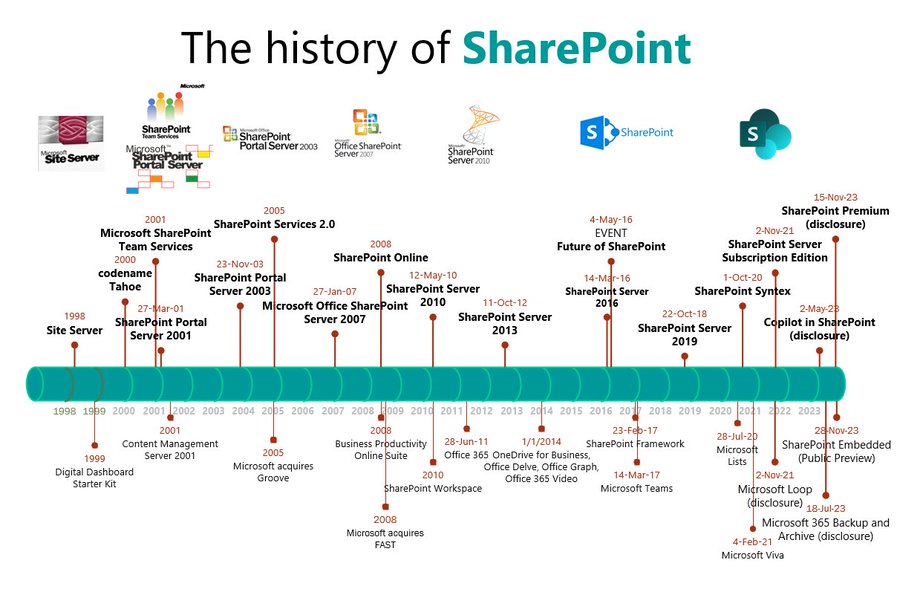
If you’re keen to see the whole 23 year history of SharePoint in one nifty graphic, SharePoint Product Manager Mark Kashman put one up on recently on his Twitter/X account. Here it is:

Yes I know it’s too small to read. Right-click on it, then select “Open image in new tab”.
You’re welcome.
Power Automate (formerly called Microsoft Flow) is the automation tool for the M365 suite of products. Like many of you, I grew accustomed to using Workflows and the SharePoint Designer tool to create and edit workflows in previous versions of SharePoint. Now with Power Automate, there are several ways to connect with other systems. I’ll cover these briefly:
- Connector: Microsoft provides many for you to choose from. A connector is used to connect to a data source, such as a SharePoint list, the Dataverse, a Google calendar, OneDrive, or a SQL server, to name but a few.
- Connection: The stored authentication details and access tokens used to connect to an external data source. Basically, a stored Connector with your stored credentials.
- Connection Reference: A reusable reference object which acts as a proxy for a Connection. This allows you to use a single connection for multiple solutions. When you have to edit, modify, or update the Connection, all your flows will continue to work without having to be each updated.
For more on this subject, I recommend this article from the Global SharePoint Diary website.